
You can put StaxInvesting on your phone's home screen as an app. It opens full-screen like any other app, and shows the same dashboard you use on your computer: your live trades, your P&L, your settings and everything else.
There's nothing new to sign up for. The app connects to your own dashboard and you log in with the same password or PIN you already use there.
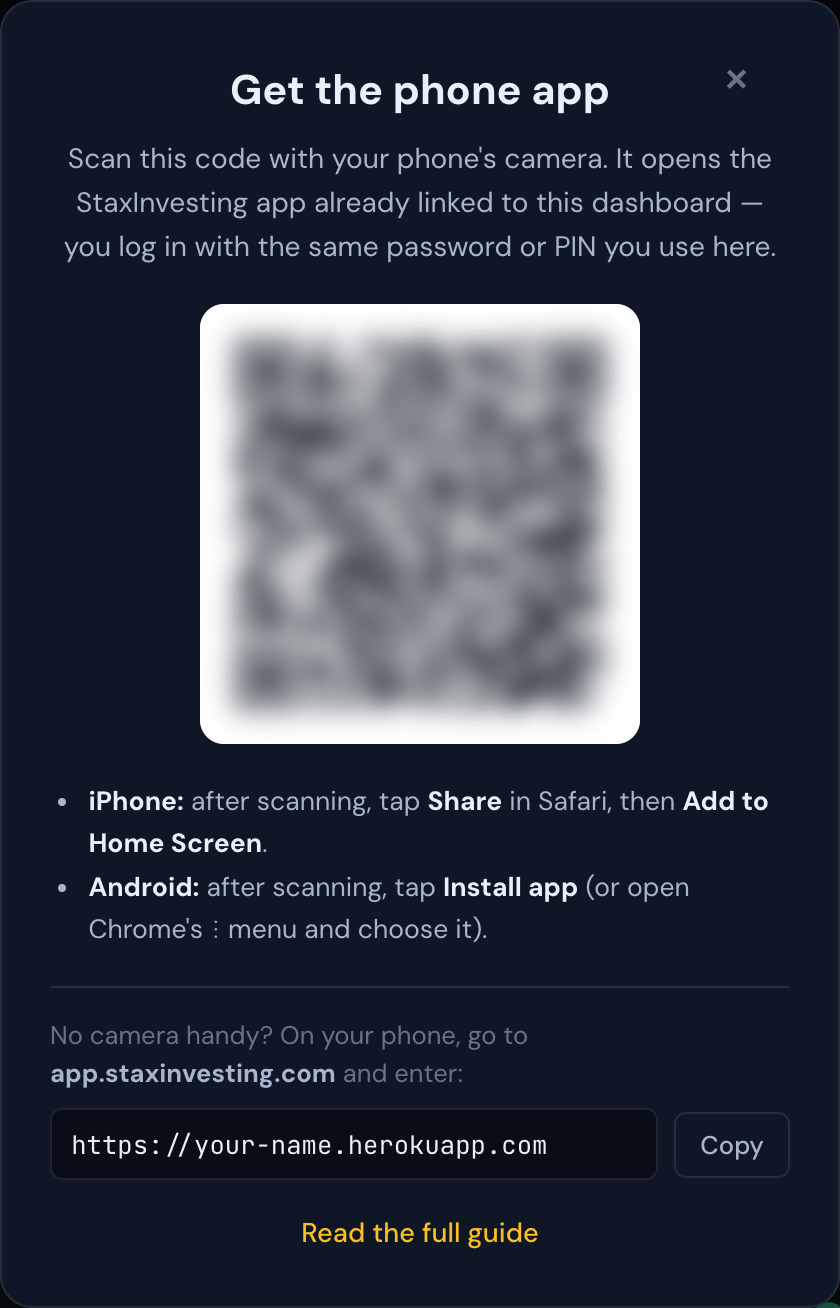
The quick way: scan the code
- On your computer, open your dashboard and click Phone App in the left-hand menu (under Account).
- Point your phone's camera at the QR code and tap the link that appears.
- Your phone opens the app and checks the address. Once it says Connected, it shows you how to add it to your home screen:
- iPhone: tap the Share button at the bottom of Safari, scroll down, tap Add to Home Screen, then Add.
- Android: tap Install the app. If you don't see that button, open Chrome's ⋮ menu and choose Install app (or Add to Home screen).
- Open Stax from your home screen and log in.
Tip
On an iPhone, add the app to your home screen straight from the Connected screen, before you log in. That way the app remembers your dashboard the first time you open it.
No computer nearby? Type the address instead
On your phone, go to app.staxinvesting.com. It asks for your dashboard address: the web address you use to open your dashboard on your computer, something like https://your-name.herokuapp.com. Type or paste it and tap Connect. Then follow step 3 above.
If you mistype it, you'll see a message saying no dashboard was found there. Check the address against the one in your computer's browser and try again.
Logging in
The app logs in exactly like your dashboard does. See Logging In for how passwords and PINs work.
Note
For your security the app signs you out the same way the dashboard does: after a stretch of inactivity (see Session Timeout), and whenever you fully close the app. Switching to another app for a moment doesn't sign you out. Setting up a PIN makes logging back in quick.
Trade notifications
If you turn on Browser Notifications in Dashboard Settings, the app shows a notification on your phone when a trade opens or closes, for example "Trade closed · SPY — Win +$42.00". Your phone asks once for permission; tap Allow.
Warning
Notifications only arrive while the app is open or was open recently. If the phone has closed the app completely, you won't get a notification for trades that happen in the meantime. Your bot keeps trading either way. You'll see everything the next time you open the app.
On an iPhone, notifications only work when you open StaxInvesting from the home screen, not from a Safari tab. They need iOS 16.4 or newer.
More than one account?
If you own several accounts, the switcher in the top banner works inside the app too. Pick another account and the app moves over to it without leaving the app. See Switching Between Your Accounts.
To connect the app to a different dashboard entirely, log out and tap Use a different dashboard at the bottom of the login screen.
Good to know
- The app is your dashboard on a smaller screen, not a separate account. Settings you change on your phone show up on your computer, and the other way round.
- Closing the app doesn't touch your bots. Your automation keeps running whether the app is open or not.
- The app always shows live data. It never shows you old, saved prices.
- If the app says Can't Reach the Server but your dashboard works fine on your computer, contact support. Your dashboard may need a quick update before the app can connect to it.