
Once in a while, the numbers we record for a trade can drift from what actually happened at your broker. Maybe your order filled at a slightly different price than we saw, or you closed a position by hand on the TastyTrade app. Reconcile With Your Broker fixes that — it pulls your real fills straight from TastyTrade and lines them up against what we have on file, so your dashboard shows the truth.
The most important thing to know: you never type in a number. Every corrected value comes directly from your broker. You just review what changed and click Accept (or Reject). That's what keeps everyone's numbers honest.
Where to find it
Open your Trade History page. If any of your trades look like they might differ from your broker, you'll see a Reconcile with broker button near the top, sometimes with a small "3 may differ" note telling you how many trades are worth a look. As you fix (or reject) trades, that count drops to reflect only the ones still worth a look — reconcile everything and it disappears. Click it whenever you want — nothing changes on its own.

How it works
- You click Reconcile with broker.
- We ask your own trading bot to pull your actual fills from TastyTrade.
- You get a simple list of any trades that don't match, showing the old value crossed out and the new (broker-true) value beside it — for example, Exit
$2.47→ $2.65. - You tick the trades you want to fix and click Accept selected. Prefer to leave one alone? Click Reject and we won't bring it up again unless your broker's numbers change.
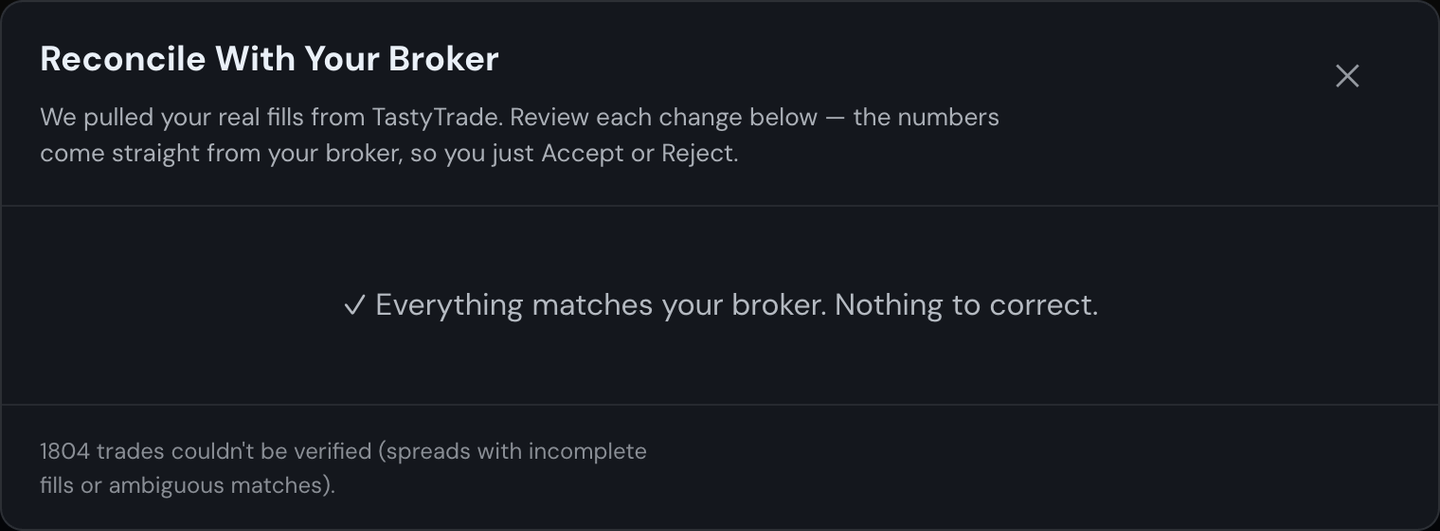
- Trades that already lined up with your broker are shown as matched — no changes needed. Confirming stamps them ✓ VERIFIED too, so your whole history is marked as checked. If everything already matches, you'll simply see a Mark N verified button — one click confirms your entire record against the broker.
Every trade that lines up with your broker earns a small green ✓ VERIFIED badge — both the ones you corrected and the ones that already matched perfectly — so you can tell at a glance that your record has been checked against the broker. You'll see it on the trade's row in your history, and on today's completed trade cards on the Trades page. Hover a corrected trade's badge to see exactly what changed. This works for single-option trades and spreads (verticals, iron condors, and the like).
Example
Your history shows a QQQ call that we recorded closing at $2.47 for a $247 profit. You actually got filled at $2.65 on the way out. You open Reconcile, see Exit $2.47 → $2.65 and P&L $247 → $265, tick the box, and hit Accept. Your dashboard, your P&L Calendar, and your total profit all update to the real $265 — and the trade now carries the VERIFIED badge.
Missing trades
Sometimes a trade your automation placed never makes it into your history at all — for example if the app was restarting the moment it closed. Reconcile catches these too. When it finds a completed trade at your broker that you're missing, it lists it in a "Trades your broker has that we're missing" section. Accept it and it's added to your history with a blue + ADDED badge.
Important: Only trades your automation actually placed can be added. We confirm this using a tag your bot stamps on every order it sends to the broker. A trade you placed by hand in the TastyTrade app (not through your automation) is never added — it can't earn the tag, so it stays out of your Stax history and off the leaderboard.
Does this affect the Leaderboard?
Note
Yes — but only because these corrections come straight from your broker and can't be faked. A trade you fix here will count toward the Leaderboard with its true numbers. Because you can never type your own values, nobody can pad their results to climb the rankings.
A few things to keep in mind
Warning
Reconcile only works for real (live) TastyTrade trades. Paper Trading trades are simulated, so there's nothing at the broker to compare them against — they're skipped.
- Reconciled numbers are your broker's true fill prices. The corrected entry, exit, and P&L come straight from your actual fills — the prices are exactly what happened at the broker. The portal then applies its usual fee estimate on top of those prices, so the net dollar figure is still an estimate until your broker settles the exact fees overnight.
- Once fixed, it stays fixed. If you Reconcile again later, an already-corrected trade will simply show as matching — it won't keep pestering you. It would only come back if your broker later posts a change to that trade (like a late fee adjustment).
- Your positions were never at risk. Reconcile only updates the record of a trade after it's closed. It never places, cancels, or changes anything at your broker.
- Some trades may be skipped. If we can't confidently match a trade to a single set of broker fills, we'll leave it alone rather than guess. When that happens, the review window tells you how many trades couldn't be verified, so nothing is hidden from you.