
A signal source is just "where this strategy gets its trade ideas from." Every automated strategy you run is subscribed to exactly one source.
The kinds of sources
When you pick a source for a strategy, you'll see a dropdown of choices. They generally fall into one of these flavors:
- A built-in alert channel — alerts produced by us. The ones you'll see most often are Dope Spreads (our in-house spread-trading channel), Signal-Hub (a generic alert pipeline that hosts a growing collection of strategies), and Smart (a built-in strategy that watches unusual options activity on SPY and QQQ and generates its own alerts).
- A marketplace subscription — alerts produced by another strategy you subscribed to from the Marketplace page.
- All sources combined — the strategy reacts to alerts from every source you have access to.
- Bring your own — the strategy listens to alerts you send in yourself from an external tool.
- None / manual-only — the strategy never takes automated alerts. It only runs when you place an entry by hand through the Hybrid Trade page.
- Futures — sources that publish stock index futures signals (long/short on contracts like the S&P 500 E-mini) rather than options. These are grouped under their own Futures heading, and they only show up when your broker is set to Tradovate Futures or Plus500 Futures — nothing else can trade them. See Futures Strategies.
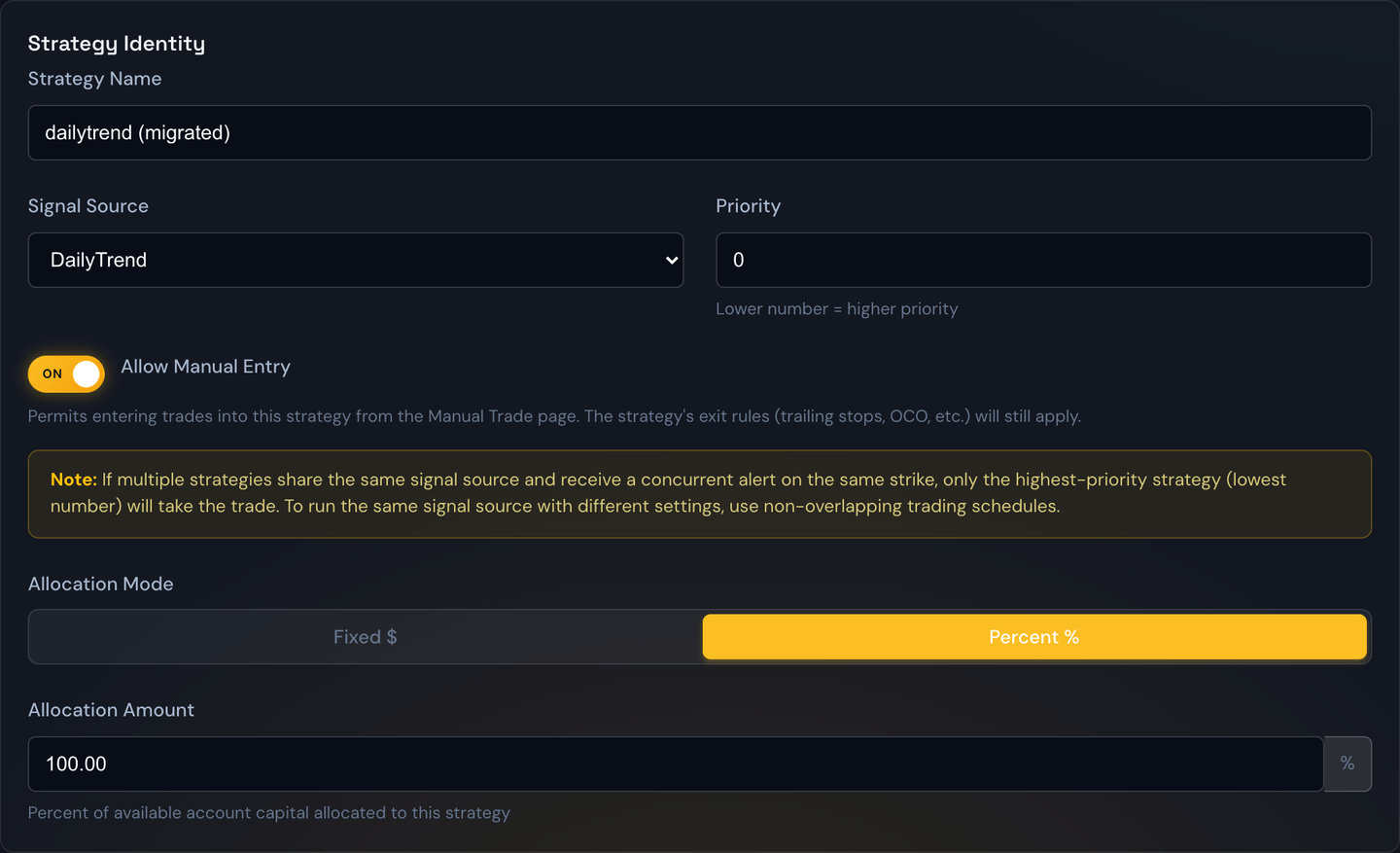
Entry-only vs entry+exit sources
Not every source publishes the same kind of alert. There are two shapes:
- Entry+Exit — the source publishes both the trade idea and an explicit exit when the trade is done. The trade has a clean win/loss outcome the moment it closes. Dope Spreads works this way.
- Entry-Only — the source publishes the trade idea but never publishes a formal exit. The trade is open-ended; whether it's a win or a loss is up to you to decide. This is where the Min Win % threshold on the Marketplace detail page comes in — it lets you set the bar that tells the portal what counts as a winner on an entry-only source.
Example
An entry-only source publishes "buy SPY 450 Call at $1.00." It never publishes an exit. You set Min Win % to 25% on that source's Marketplace detail page. From that point on, any historical trade that touched at least +25% counts as a WIN, anything that didn't is a LOSS, and trades that are still open are tagged POTENTIAL.
How an entry-only alert is judged when it expires
An entry-only source never tells you where it got out, so when one of its alerts runs all the way to expiration, somebody has to decide what it was worth. That answer used to be "whatever it was trading at on the closing bell" — which, for a same-day option that finished out of the money, is a penny. Alerts that had been up 100% or more during the day were being filed as losses.
That described something that happened to nobody. Nobody holds a same-day option to the bell. Your own take-profit, your trailing stop, your position size and your trading hours decide when you're out, and two people following the same alert routinely finish with opposite results.
So an entry-only alert that expires is now judged on the best the trade ever offered. If it was ever up more than 5%, it's recorded as a win. That's the only claim a source publishing entries alone can honestly make: it found a trade that went your way, and what you did with it was yours to decide.
- Sources that publish exits are unchanged. They told us where they got out, so their record is still scored against the price they actually called.
- This is the same idea as the Min Win % threshold on a Marketplace detail page, applied automatically at expiration instead of by you on a slider.
Example
An alert entered at $0.17 and ran to $0.47 — up 176% — before fading to a penny at the close. It used to read as a loss. It now reads as a win, which is what anybody holding a take-profit actually experienced.
Follow the exits, or run your own
Some sources — like Copy Trade Stax and Dope Spreads — publish their own exits, and they show up twice in the source dropdown so you can choose how much of the strategy you want to copy:
- Under "Copy Trade" — the full copy. Your strategy mirrors everything the source does: the entry, any adding to the position (averaging), any take-profit / stop-loss changes, and the exit. When the source closes the trade, yours closes too. Because the source is running the exit for you, trailing stops are turned off for this strategy.
- Under "Signal Hub," labeled "… (Entry Only)" — you copy only the entry. You get the same trade idea, but from there you manage the exit with your own strategy settings (trailing stops, take-profit / stop-loss, OCO). The source's take-profit/stop-loss changes and its close signal are ignored — your rules decide when to get out.
Example
You point one strategy at Copy Trade Stax (under Copy Trade) and it rides every trade exactly like the source, exit and all. You point a second strategy at Copy Trade Stax (Entry Only) (under Signal Hub) with a 30% trailing stop. Both take the same entry when the source buys SPY 450 Calls — but the first one closes when the source says so, while the second one holds and lets your 30% trailing stop decide the exit.
Note
In Entry-Only mode, averaging is just treated as another entry signal — so if the source adds to the position, your strategy adds too, unless you've turned off Allow Averaging in that strategy's settings.
Note
Futures sources can't be backtested at all — the Backtest page replays option prices only, so futures sources are left out of its Alert Source list.
Note
Full-copy vs. entry-only is a live-trading choice. Backtesting is always entry-only for these sources — it replays each historical entry and applies the exit rules you set, but it can't reproduce a source's past exits or averaging. That's why an exit-publishing source shows up as "… (Entry Only)" on the Backtest page, with no full-copy option.
Take over a single copied trade ("Stop Copying")
Copying in full is all-or-nothing by default: the leader manages every trade for you. But sometimes you're in one of those trades and you'd rather run that one yourself — maybe it's winning and you want to trail it with your own stop instead of letting the leader close it.
On any open trade you're copying in full, you'll see a Stop Copying button (with a broken-chain ⛓️💥 icon). Press it, confirm, and that one trade detaches from the leader:
- The leader's exit, take-profit / stop-loss changes, and averaging stop applying to it.
- Its current stop and target stay exactly where they are until you change them.
- Your own Close, Adjust (stop-loss / take-profit), and Scale In controls work normally from there.
- The trade gets a ⛓️💥 Self-managed pill, and its win or loss counts as your result, not the leader's.
This affects only the trade you press it on — every other trade you're copying keeps following the leader exactly as before. It's a one-way change (there's no re-attaching a trade to the leader), so you'll be asked to confirm first.
Note
The button only appears on trades you're copying in full. If you subscribed in Entry-Only mode, you're already managing the exit yourself, so there's nothing to detach.
Example
You copy Copy Trade Stax in full and you're holding three of its trades. One — a SPY call — is running nicely, and you'd rather trail it with your own stop than let the leader close it. You press Stop Copying on just that card and confirm. That trade is now yours to manage; your other two Copy Trade Stax positions keep following the leader exactly as before.
Picking the right one
Every strategy on your account can have a different source. That's the whole point: one strategy might run a conservative ruleset on day-trade alerts, another might run an aggressive ruleset on swing-trend alerts.
Tip
If you're not sure what a particular source looks like, point a strategy at it but leave the strategy disabled. Watch the alerts feed for a few days. Once you understand the rhythm — how many alerts, what kind, when — then turn the strategy on.