
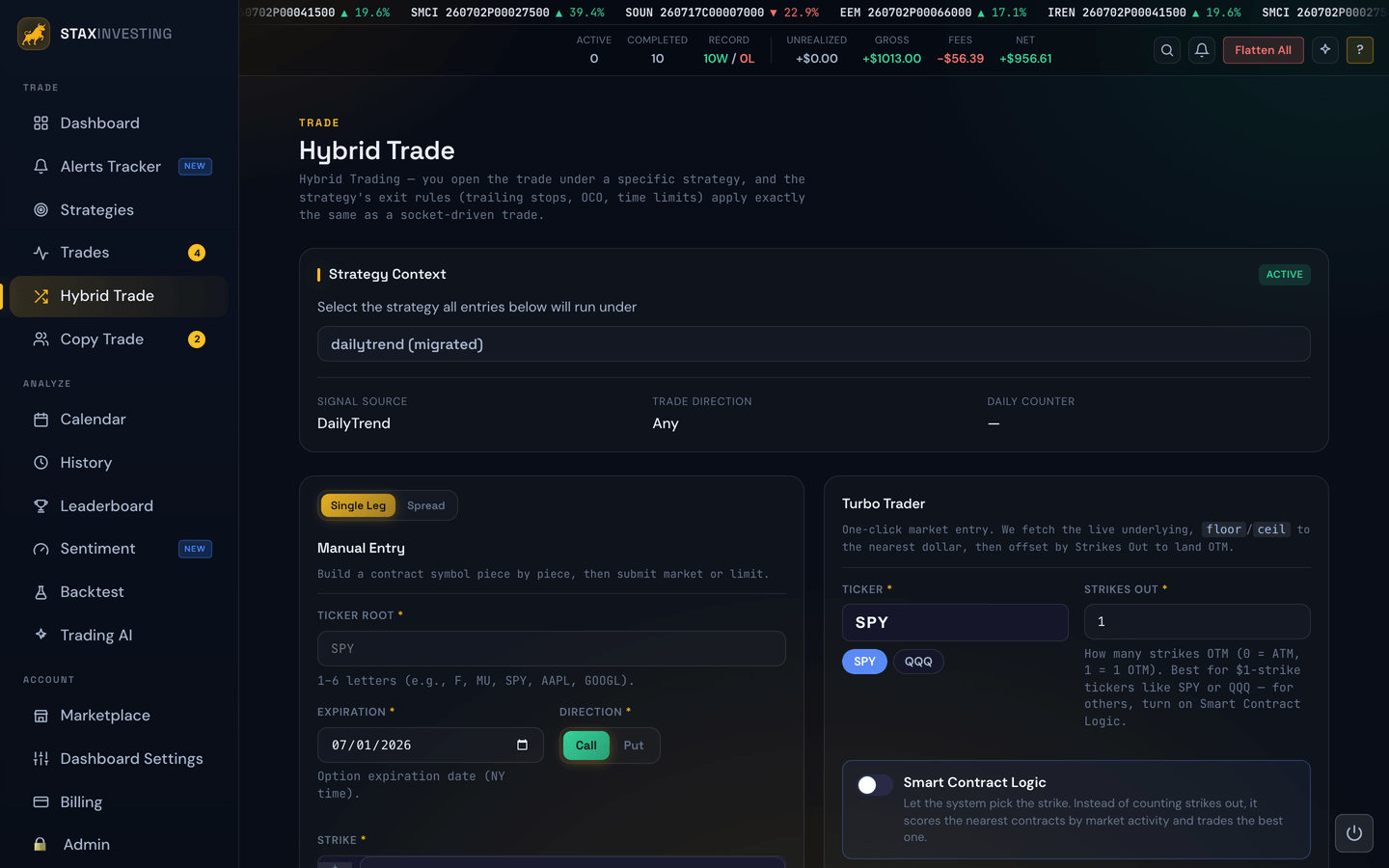
Hybrid Trade is for entering a position by hand while still letting one of your strategies handle the exit. You pick the ticker, the strike, and the direction; the strategy you choose then watches the trade and applies its profit target, stop-loss, trailing stop, and time limits — just as if an alert had brought the trade in.
When to use it
- You're watching a setup the alerts didn't catch and you want to take it.
- You're testing a discretionary idea but you want disciplined automated exits on it.
- You want to add a position alongside the automated ones without abandoning your exit rules.
The form
The entry form asks for the basics:
- Ticker — e.g. SPY, QQQ.
- Expiration — which expiry to use.
- Strike — the strike price.
- Call or Put — direction.
- Order type — Market (fills right away) or Limit (waits until your price is hit).
- Strategy — which strategy's exit rules should govern this trade after it fills.
Example
You see SPY pulling back to a level you like. You select SPY, the next expiry, the at-the-money call, Market, and assign it to your conservative strategy. The trade opens, and from that point forward it lives by your conservative strategy's stop-loss, profit target, and time-limit rules.
Single Leg or Spread
At the top of the entry form is a Single Leg / Spread switch.
- Single Leg is the standard entry above — one call or one put.
- Spread lets you open a multi-leg options position (like a credit spread or an iron condor) as a single order, all under the strategy you picked.
When you choose Spread, pick the spread type first and the form locks the legs into the correct shape for you — you just fill in the strikes, one shared expiration, the net price, and how many contracts. You enter the net price as a positive number; whether that's money you collect (a credit) or money you pay (a debit) is decided by the spread type, not by a plus or minus sign.
Example
You want to sell a SPY bull put credit spread. Choose Spread, pick Bull Put Credit Spread, enter SPY and this Friday's expiration, set the short put strike to $610 and the long put strike to $605, type 1.20 for the net credit, and 2 contracts. Submitting sends the whole two-leg order at once, and your chosen strategy then manages the exit on the spread as a package.
Note
The Spread option appears when your account is set up to trade spreads — normally when you're trading on a live broker. If you don't see it, you'll just use the Single Leg form. See Spread Trades for how open spreads are displayed and managed once they fill.
Turbo Trader
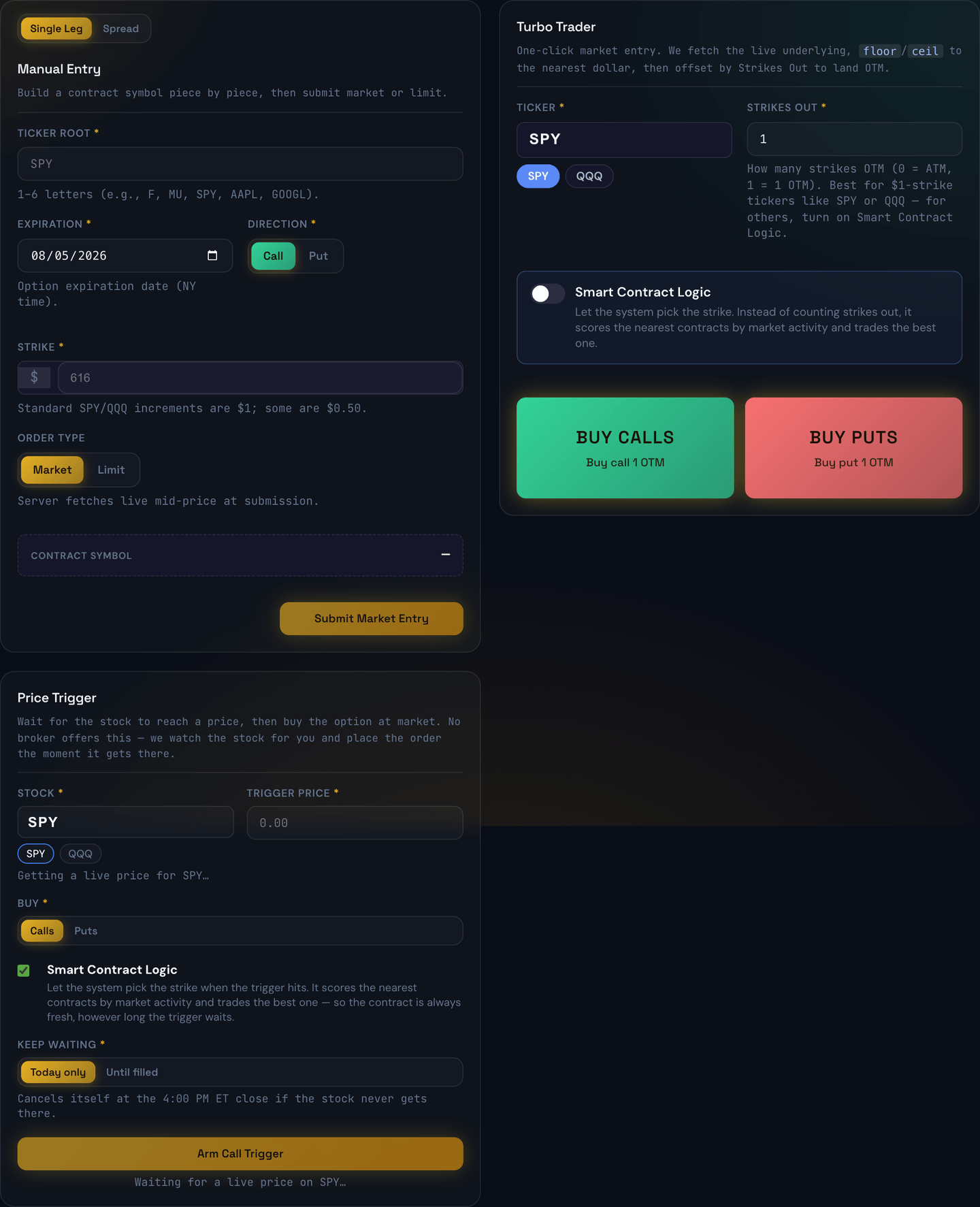
Below the main entry form is Turbo Trader — a faster, one-click way to open a position at the current market price. Instead of filling in an expiration and a strike, you type a ticker and press BUY CALLS or BUY PUTS. Turbo Trader fetches the live price, picks the contract, and sends a market order under the strategy you selected — all in one tap.
Type any ticker into the box, or tap one of the SPY / QQQ quick buttons to fill it in instantly.
There are two ways Turbo Trader decides which strike to buy:
Strikes Out (the default). You tell it how far out-of-the-money to go. 0 is the strike nearest the current price (at-the-money), 1 is one strike further out, and so on. This works best on tickers whose strikes are spaced $1 apart, like SPY and QQQ.
Example
SPY is trading at $613.70. You type SPY, leave Strikes Out at 1, and press BUY CALLS. Turbo Trader buys the $614 call at the market. Pressing BUY PUTS instead would buy the $613 put.
Smart Contract Logic. Flip on the Smart Contract Logic switch and the Strikes Out box disappears — you no longer choose the strike. Instead, when you press BUY CALLS or BUY PUTS, the system looks at the several nearest strikes in your chosen direction and picks the one with the best market activity (things like trading volume and open interest) for you. Use this when you know the ticker and which way you want to trade, but you'd rather let the system pick the exact contract — especially on tickers other than SPY and QQQ, where choosing a strike by hand is harder.
Example
You want to go long NVDA but you're not sure which strike to buy. Type NVDA, turn on Smart Contract Logic, and press BUY CALLS. The system scans the closest call strikes above NVDA's current price and buys the one with the strongest market activity, then manages the exit under your chosen strategy.
Note
Smart Contract Logic needs live market data to make its choice. If the market is closed for new entries, or the ticker's options are too thinly traded to pick from, Turbo Trader tells you it couldn't find a contract rather than guessing — it never quietly buys a different strike than you intended. If it has to settle for the middle strike because data was thin, it says so after the trade opens.
Warning
Turbo Trader always sends a market order — it fills right away at the current price. Make sure the ticker and direction are right before you press either button.
Price Trigger
The third panel is Price Trigger, and it's the one thing on this page that doesn't place an order when you press the button. Instead it waits: you name a stock and a price, and the moment the stock reaches that price, the option entry goes in at market under the strategy you selected.
No broker offers this. You can put a limit order on an option, or a limit order on the stock, but not "buy this option when the stock gets to $612.50." Your bot holds that order for you and watches the stock itself.
Example
SPY is at $610.12. You want calls, but only if it pushes through $612.50. Type SPY, type 612.50, choose Calls, leave Smart Contract Logic on, choose Today only, and press Arm Trigger. Nothing is bought. If SPY touches $612.50 before the close, the call is bought right then and managed by your strategy's exit rules. If it doesn't, the trigger cancels itself at 4:00 PM ET.
A waiting trigger shows up under Pending Triggers on the Live Trades page, with the stock's price updating live. You can change the trigger price, switch between Smart and your own strike, or cancel it from there.
This panel only appears on options strategies, and only once your bot is new enough to hold triggers — if you don't see it, your bot needs an update.
See Price-Triggered Entries for the full details.
Futures strategies
If the strategy you pick is a futures strategy, the page reshapes itself — there is nothing to switch on. An amber FUT badge appears next to the strategy name, and the forms change to match how futures actually trade:
- No expiration, no strike, no call/put. A futures contract has none of those. You pick a contract and a direction, and that's the whole trade.
- Long and Short replace Call and Put. Long profits when the price goes up; Short profits when it goes down.
- No Spread option. A futures position is a single contract, so there is nothing to spread.
- Contracts replaces the strike settings. It starts at whatever your strategy is set to, and you can change it for this one trade (1 to 10).
Which contract you get
You'll see two buttons: M(ES) for the S&P 500 and M(NQ) for the Nasdaq. The M is in brackets because it's optional — whether you trade the small (micro) version or the big (mini) version is decided by your strategy's contract-scale setting, not by this page.
Under the buttons, the page tells you exactly what will trade, so there's never any guessing:
Trading MES · Micro MES · $5/pt · 0.25 tick · $1.25/tick
That reads as: each full point of movement is worth $5 per contract, the price moves in steps of 0.25, and each of those steps is worth $1.25. The GO buttons say it too — Buy 2× MES at market.
Note
To trade the bigger ES or NQ contracts instead, change Contract Scale to Mini on the Strategies page. There is deliberately no switch for it here — size is a strategy decision, not a per-click one, and a mini is ten times the size of a micro.
Two ways in
Limit Entry (the left form) rests an order at a price you choose. It only fills if the market actually trades there. Enter the price as an index level — 6300.25, not dollars — and it must land on the contract's price steps (a multiple of 0.25 on MES and MNQ). The form tells you what one tick is worth on your order size, so the risk is never abstract.
Example
MES is trading around 6312 and you want in on a pullback. Pick M(ES), choose Long, set Contracts to 2, and type 6300 as the limit price. Nothing happens yet. If MES drops to 6300 the order fills and your strategy takes over the exit. If it never gets there, the order is dropped after a few minutes and you've risked nothing.
Turbo Trader (the right panel) is the get-in-now button. No price to type — press GO LONG or GO SHORT and the order goes in at whatever the market is trading. There's no Strikes Out and no Smart Contract Logic here, because there is no strike to choose.
One position at a time
Futures entries do not average in. If you're already long MES on that strategy and you press GO LONG again, the system refuses and tells you so, rather than doubling your position.
Pressing the opposite direction depends on your strategy's Reversal Policy, which the banner at the top of the page shows you:
- Close Only — flattens the position you're in and stays flat.
- Close & Reverse — flattens the position and opens the new one in the other direction.
- Ignore — leaves your position alone and does nothing.
Warning
Under Close Only and Close & Reverse, pressing the opposite button closes a real position. That happens whether or not the new entry goes through. Check which way you're already positioned before you press GO.
Note
Your strategy needs a take-profit and stop-loss (or a trailing stop) set up before it will accept a futures entry. If it doesn't have one, the page says so and refuses rather than opening an unprotected position. See Futures Strategies for setting those, and Futures on Paper to practise without real money.
The strategy context banner
At the top of the page is a banner that names the strategy your next entry will run under. Once you've picked a strategy from the dropdown, the banner summarizes:
- The signal source the strategy is wired to (so you know which alert feed it would normally take trades from).
- The trade direction the strategy is configured for (calls, puts, spreads, etc.).
- The daily counter — how many trades the strategy has already taken today out of its daily cap, and how many remain. If the counter is already at its limit, Hybrid Trade will refuse the entry until tomorrow.
On a futures strategy the trade direction is replaced by the three things that actually govern the entry: contract scale (micro or mini), contracts per trade, and reversal policy.
This banner is the "you-are-here" reminder for hybrid trading: every entry below it inherits the rules of the strategy named above it.
Set a default strategy
Once you've picked a strategy, tick Make this my default strategy next to the dropdown. From then on, every time you open Hybrid Trade that strategy is selected for you automatically and the entry forms are ready to go — you don't have to choose from the dropdown first. Untick the box to go back to choosing each time.
Example
You almost always hybrid-trade under your "SPY Scalper" strategy. Select it once, tick the box, and tomorrow the page opens straight to SPY Scalper with the Manual Entry and Turbo Trader forms already showing.
Tip
If your default strategy is later disabled or has Allow Manual Entry turned off, the page simply asks you to pick a strategy again — nothing breaks.
A note on responsibility
Hybrid trades are real trades on your real broker account. Once you click submit, the order is sent. Double-check ticker, strike, quantity, and direction before confirming.